Introduction
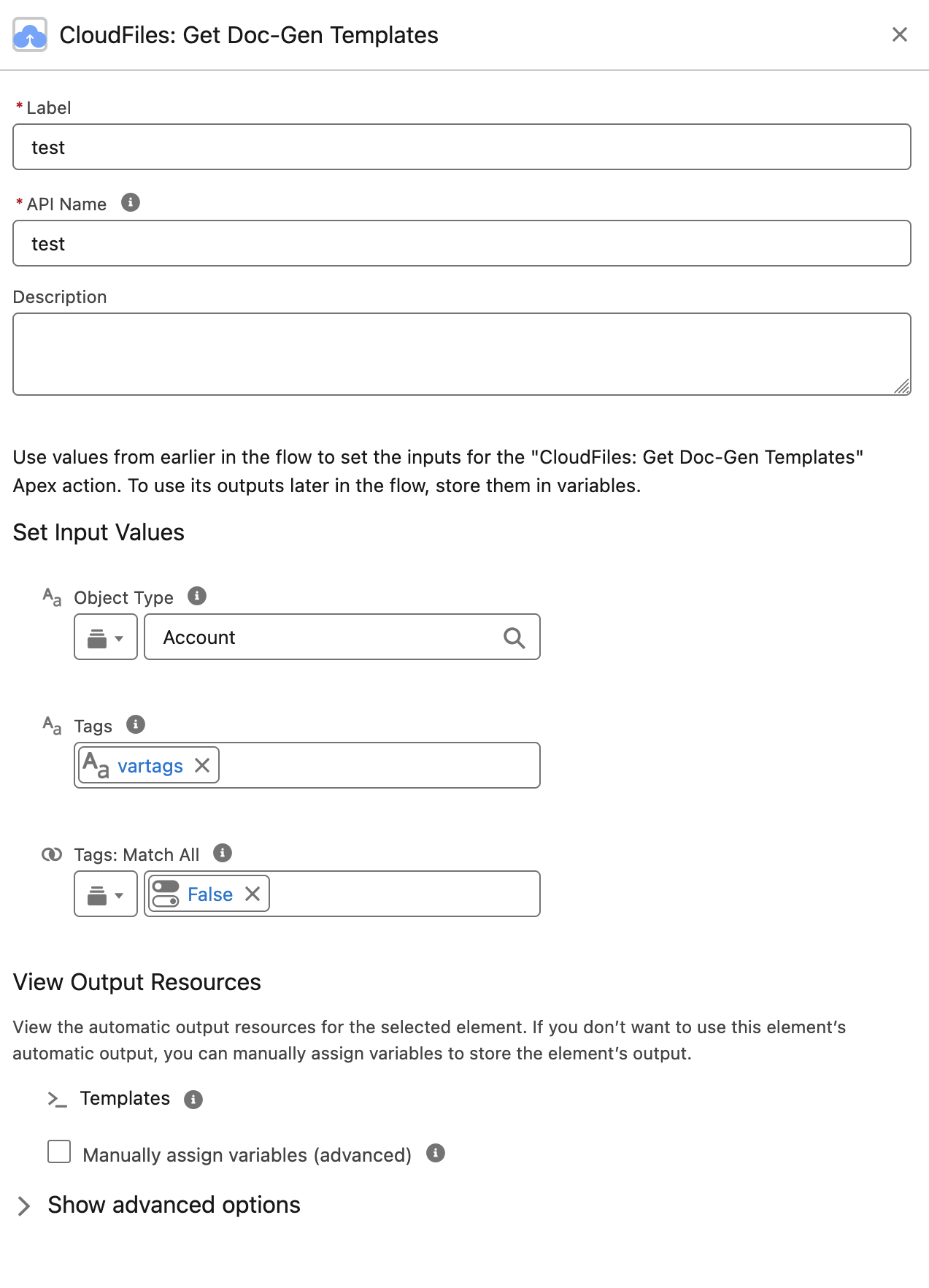
The CloudFiles: Get Doc-Gen Templates action is a Salesforce Flow Apex action that retrieves CloudFiles Document Generation templates, filtered by Salesforce Object type, by tag, or by both. It is typically used as a preparatory step before generating documents, allowing your Flow to look up and select the right template at runtime rather than hardcoding a template ID.
What This Action Does
All your Doc-Gen templates can be viewed and managed under the CloudFiles App → Document Generation → DocGen Templates section. Each template in this list is associated with a source Salesforce object (e.g., Account, Lead, Purchase_Order__c) and has a unique Template ID, version number, tags, and other metadata. The CloudFiles: Get Doc-Gen Templates action allows you to programmatically fetch this same list, filtered by object type or by tag, directly within a Salesforce Flow.
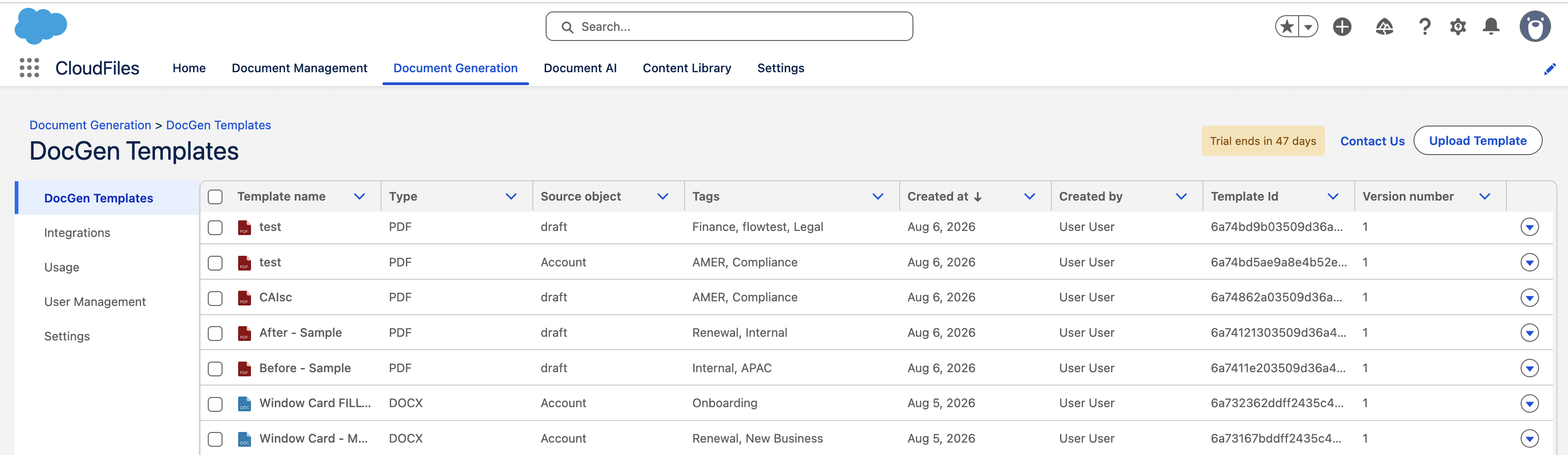
When executed, CloudFiles: Get Doc-Gen Templates queries the CloudFiles platform and returns a collection of Doc-Gen templates matching the filters supplied: all templates configured for a given Salesforce Object type (e.g., Account), all templates carrying the given tags, or both. Where only an object type is supplied, this is the same list of templates you would see when browsing the CloudFiles App → Document Generation → DocGen Templates section and filtering by a particular source object.
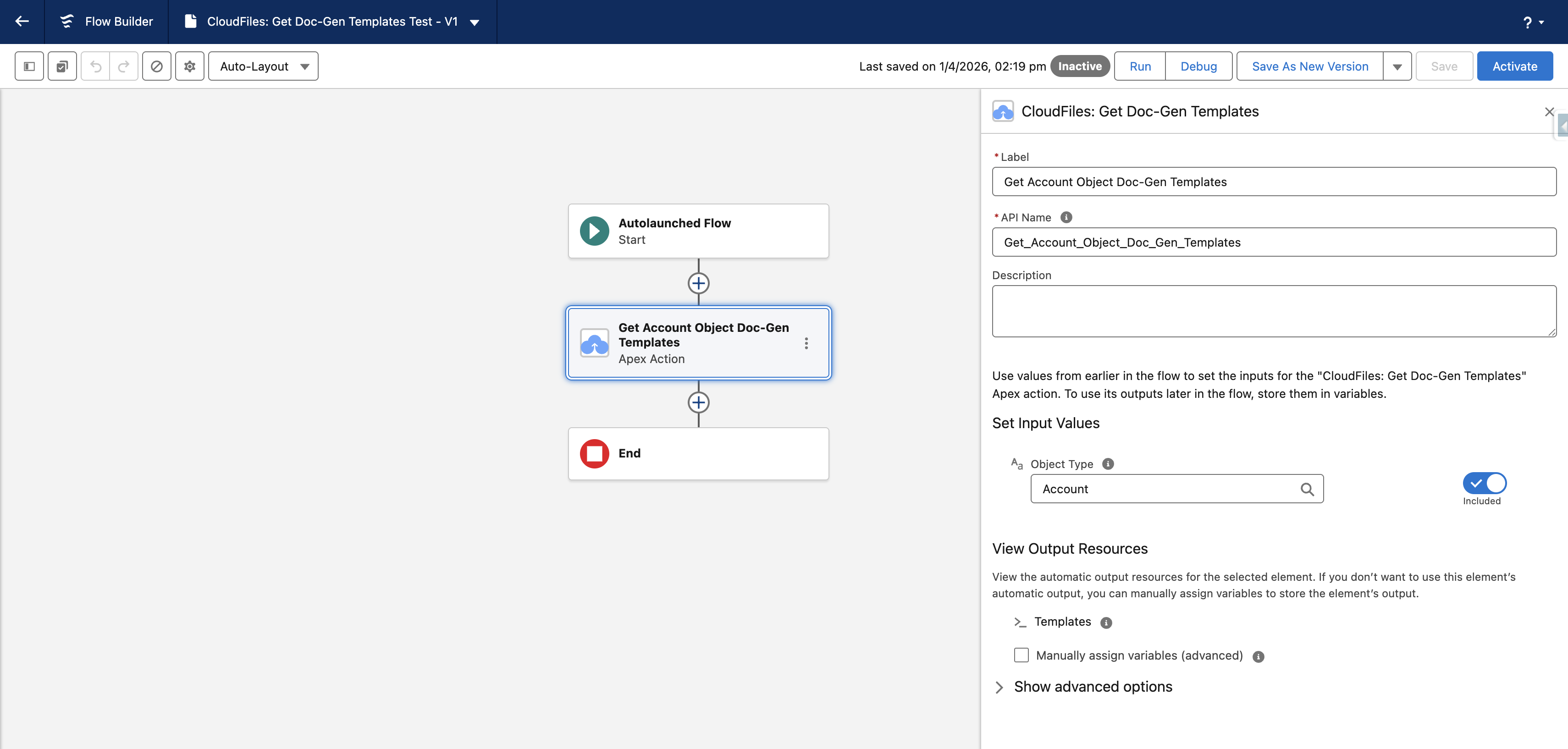
This action is especially useful when you need to filter or choose templates at runtime, enabling flexible and intelligent document generation workflows within Salesforce Flow Builder.
Input Parameters
All inputs are optional. Supply at least one filter to keep the returned collection to a usable size.
- Object Type: The API name of the Salesforce Object for which you want to retrieve Doc-Gen templates. This should match the Object type as configured against your CloudFiles Doc-Gen templates (e.g.,
Account,Contact, or a custom object such asPurchase_Order__c). Leave this blank to retrieve templates across all object types.
Example: EnteringAccountreturns all CloudFiles Doc-Gen templates whose Master source object is set to Account. - Tags: One or more tags to filter by. Only templates carrying a matching tag are returned. Leave this blank to apply no tag filter.
Example: EnteringRenewalreturns only templates taggedRenewal. - Tags: Match All: Controls how multiple tags are evaluated. Set to
trueto return only the templates carrying every tag in the list. Set tofalseto return templates carrying any tag from the list. This input has no effect when a single tag is supplied.
Example: With tagsEMEAandContract, setting Tags: Match All totruereturns only templates carrying both tags. Setting it tofalsereturns templates carrying either.
Filtering by tag alone can return templates from several objects
A tag is not tied to a source object, so leaving Object Type blank can return templates published against different objects in a single collection.
A document can only be generated from a record of the object the template was published against. If a tag-only filter can return templates from more than one object, confirm the template belongs to the record's object before passing its id into a CloudFiles: Generate Document action. The simplest way to avoid this is to keep Object Type set whenever you already know the object your Flow is running on.
Output Parameters
The action returns a single output, Templates cldfs__DocGenTemplateList, which is a collection of records of the custom Apex type Template.
Each item in the returned collection represents one template and exposes the following fields:
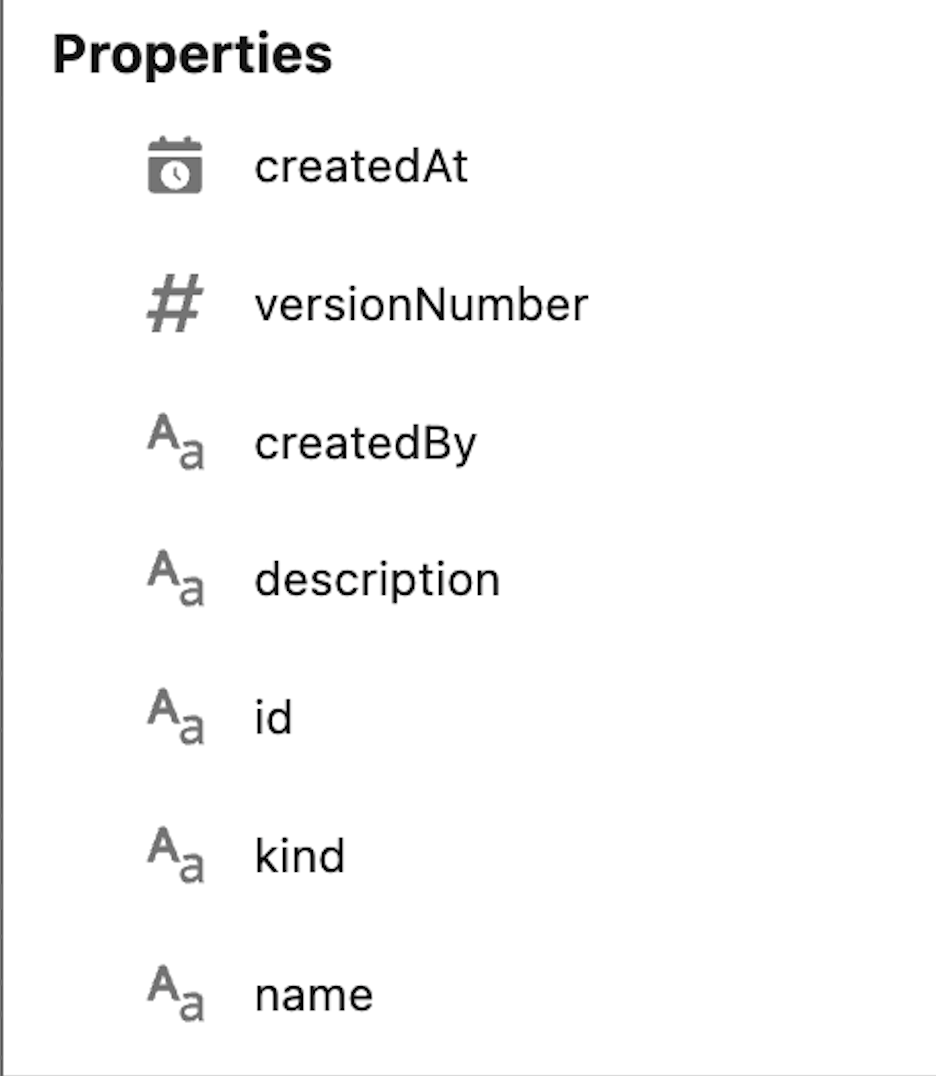
| Field | Type | Description |
|---|---|---|
| id | Text | The unique identifier of the template in CloudFiles. |
| name | Text | The display name of the template (e.g., Proposal Presentation). |
| kind | Text | The template file type (e.g., docx, pptx, xlsx, pdf). |
| description | Text | A short description of the template, if configured. |
| tags | Text | The tags applied to the template. |
| createdAt | DateTime | The timestamp when the template was created. |
| createdBy | Text | The user who created the template. |
| versionNumber | Number | The current version number of the template. |
The collection can then be used according to the use case, for example filtering a template by name before passing it to a Generate Document action downstream.
Using the Output in Your Flow
Since the output is a collection, you will typically follow the pattern below after the action is added to your flow.
Step 1: Tag the Templates
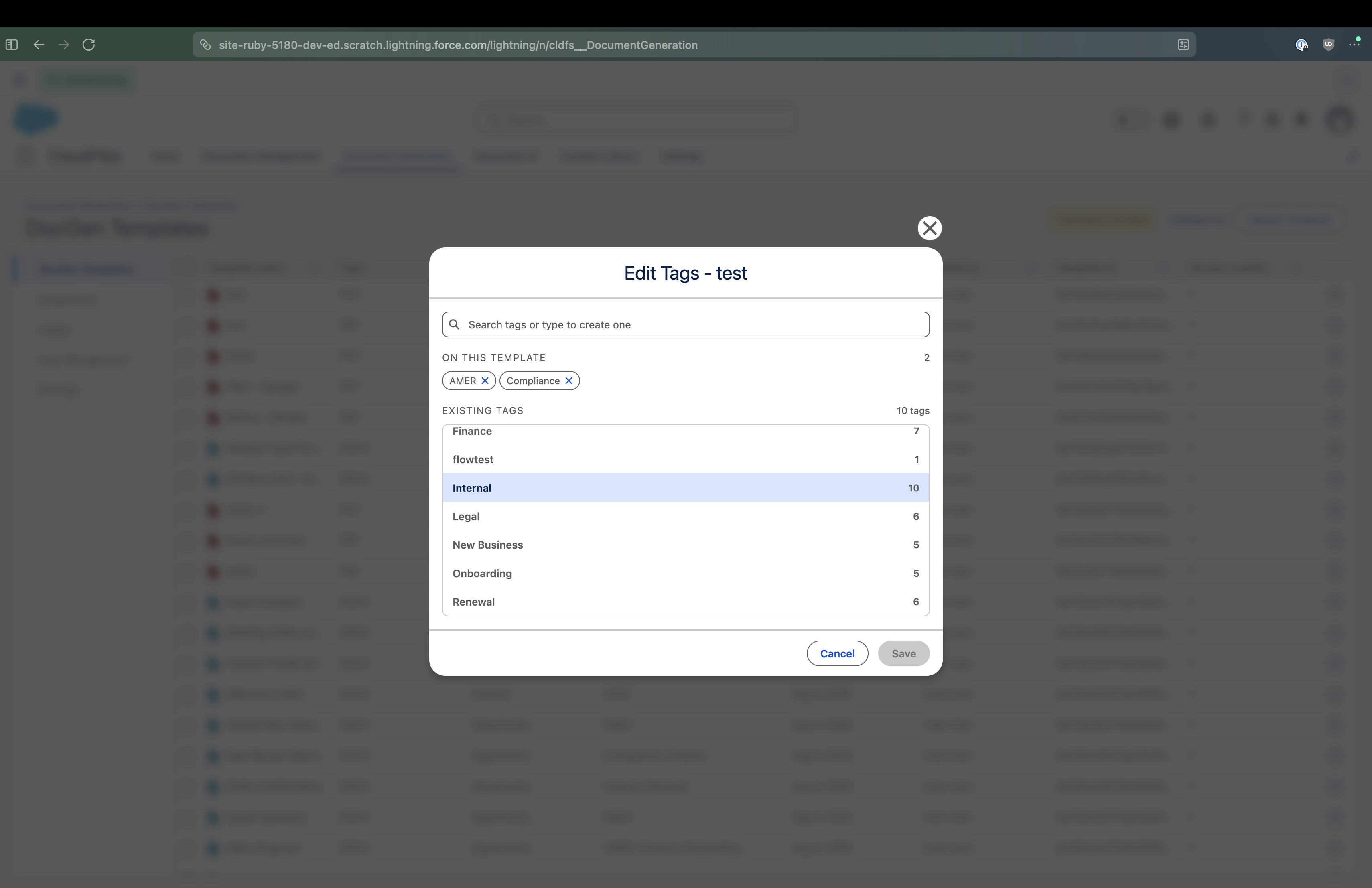
On the DocGen Templates page, apply a shared tag to the templates this flow should be able to reach. Tagging is optional, but supplying a tag on the action returns a smaller collection and reduces how much narrowing the flow has to do.

Step 2: Add the Action
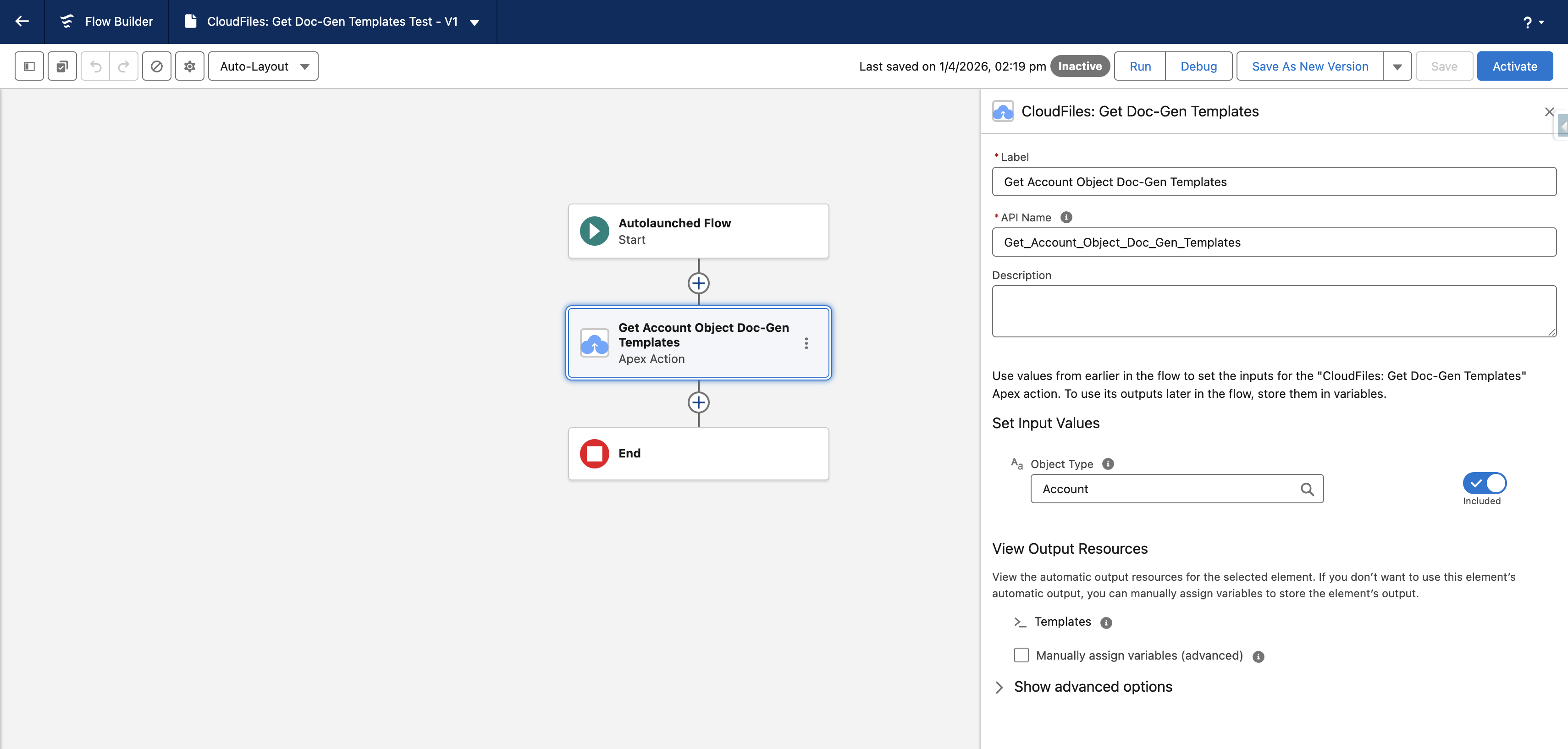
In Flow Builder, add the CloudFiles: Get Doc-Gen Templates Apex action to your flow. Set the Object Type input to the API name of the relevant Salesforce object (e.g., Account), and set Tags to the tag you applied. If you supply more than one tag, set Tags: Match All to control whether templates must carry all of them. The output resource Templates will be automatically available for use in subsequent elements.
Step 3: Add a Loop Element
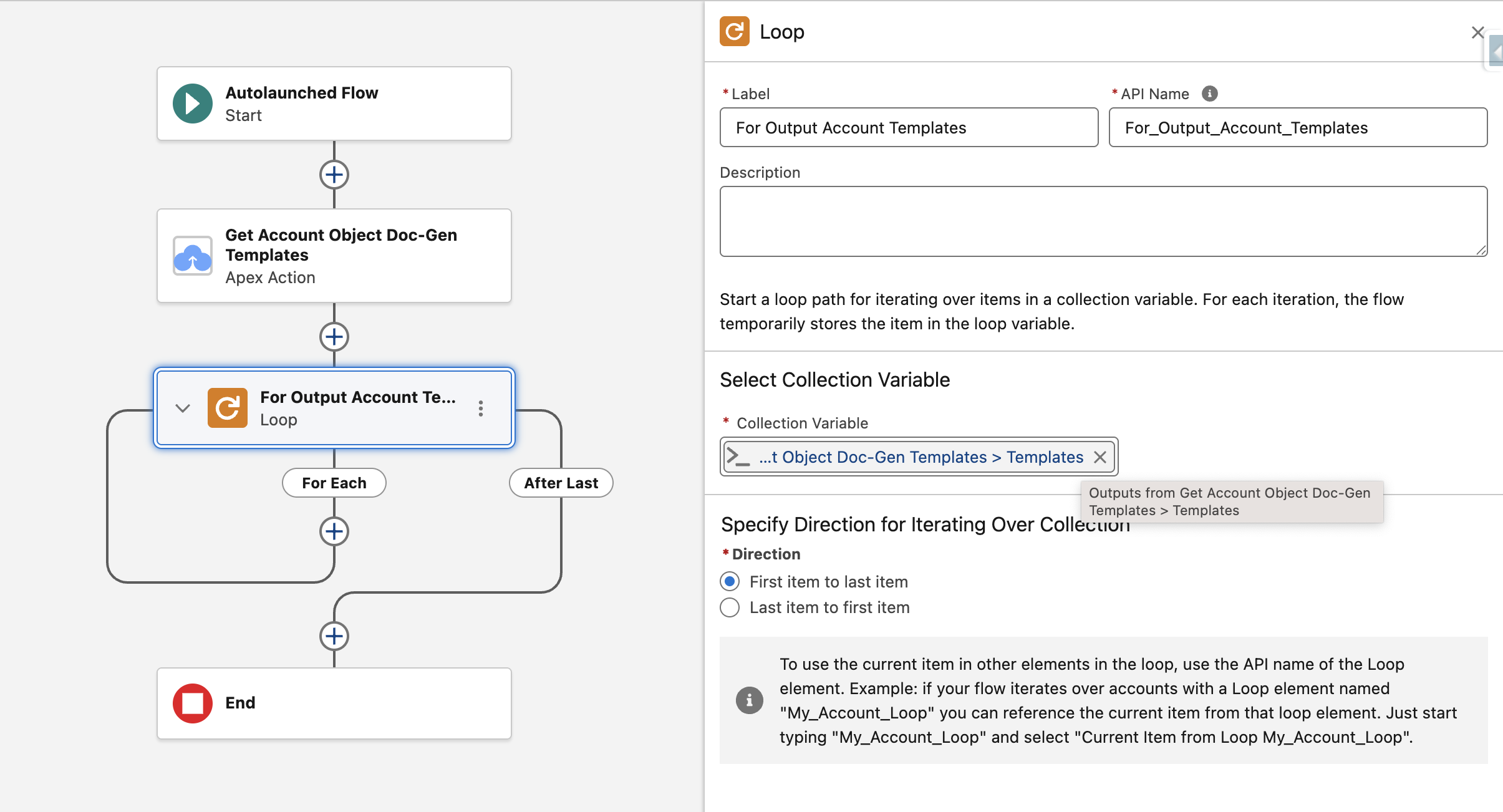
Add a Loop element immediately after the action. Set its Collection Variable to the Templates output of the action (shown as Outputs from Get Account Object Doc-Gen Templates > Templates). This will iterate over every template returned, one at a time.
Step 4: Add a Decision Element Inside the Loop
Inside the loop, add a Decision element to identify the specific template you want to use. Use the current loop item's fields as the resource, for example set the Resource to Current Item from Loop > name, the Operator to Equals, and the Value to the template name you want to match (e.g., Pre-Sale Proposal or Annual Report).
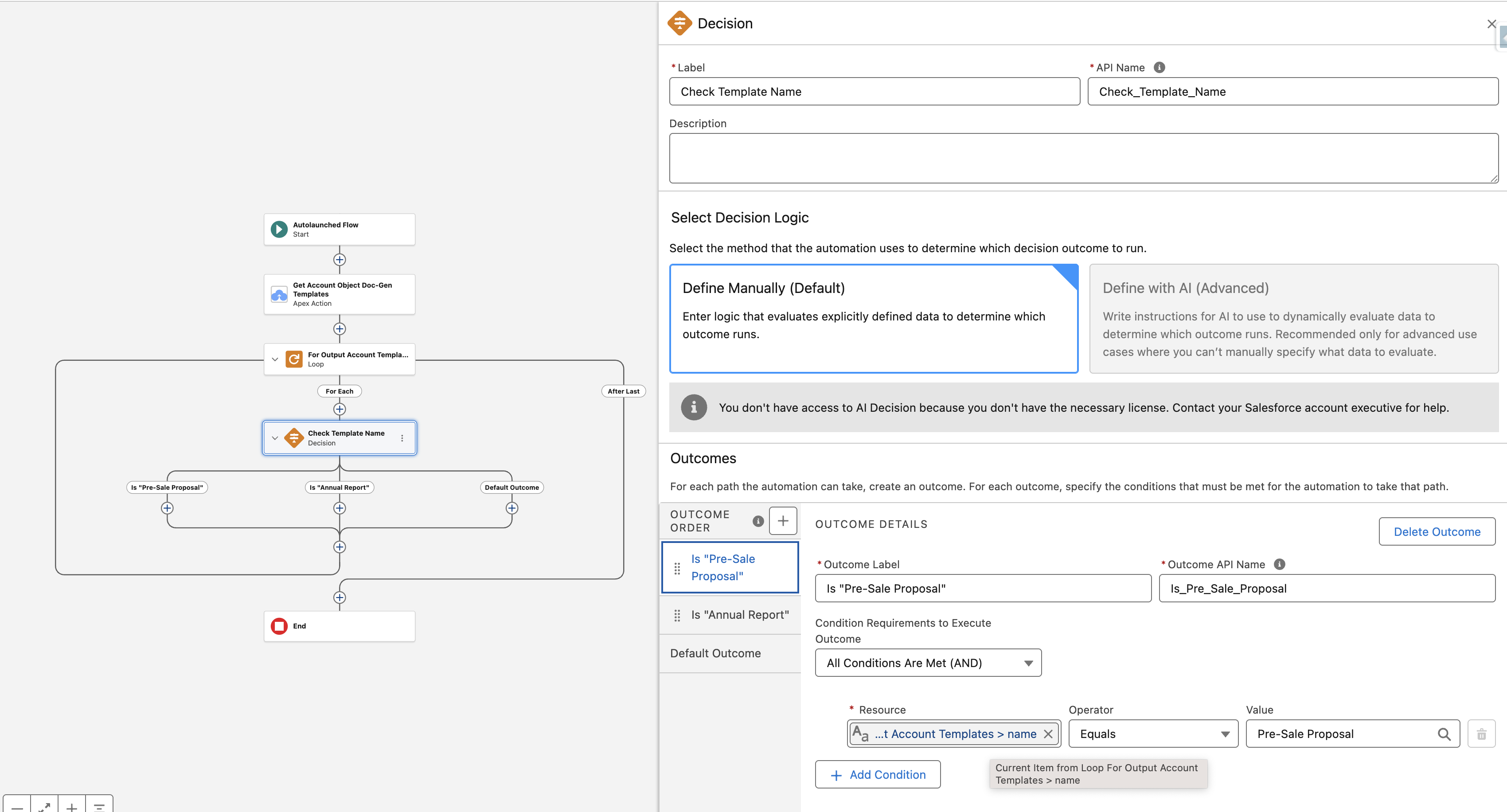
You can define multiple outcomes in a single Decision element to handle different templates in the same flow.
If the tag filter already narrows the collection to a single template, you can skip the Loop and Decision elements and pass the template straight to the next step.
Step 5: Generate the Document
On the matching Decision outcome path, add your CloudFiles: Generate Document or CloudFiles: Generate Document (Sync) action. Pass the relevant fields of the matched template (such as id) into the Generate Document action as the template input.